
Last updated November 1, 2026. Reviewed by the HomePilot editorial team.
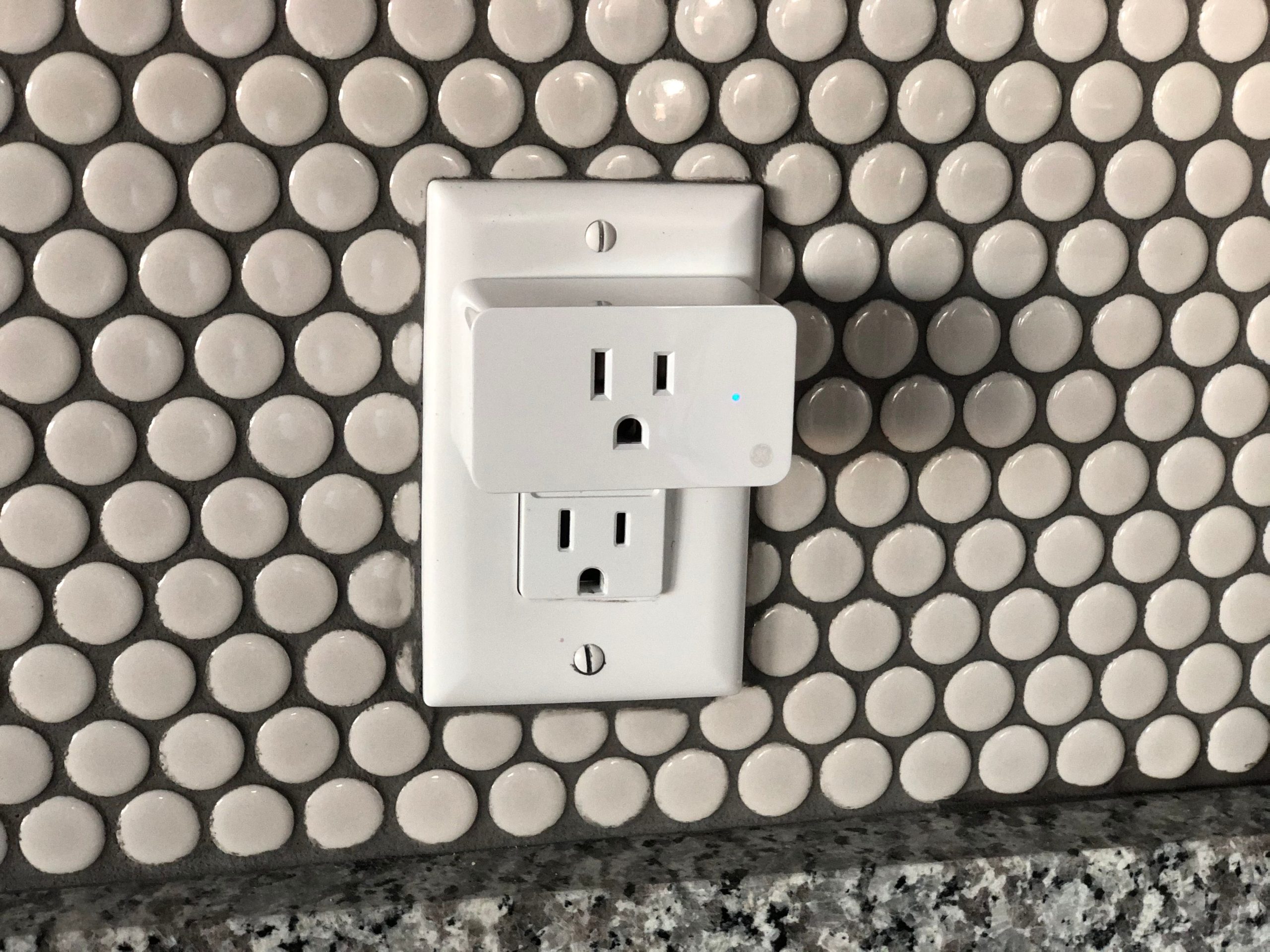
Right now, your $15 smart plug, your doorbell camera and the robot vacuum are probably on the same Wi-Fi network as the laptop with your tax returns and the phone with your banking app. That is convenient. It also means that if one cheap gadget with weak security gets compromised, an attacker is already inside the same network as everything you care about.
By the HomePilot Team · Updated November 1, 2026 · Based on FBI guidance on smart device security · How we research
Short answer: the FBI has advised people to keep smart home (Internet of Things) devices on a separate network from computers and phones that hold sensitive information. The easiest way is to turn on your router’s guest network, make sure guests cannot see devices on your main network, and connect your smart plugs, bulbs, cameras and other gadgets to it. Some routers and mesh systems now offer a dedicated IoT network that does this for you. Expect to keep a few devices, like media streamers, on the main network so casting still works.
Key takeaways
- A separate network keeps a hacked gadget away from your laptop and phone.
- A guest network with isolation is the simplest option on most routers.
- Turn off any guest-network time limit, or your devices will disconnect.
- Casting and some local controls only work when phone and device share a network.
Why separate your smart devices?
In a 2019 tech advice note, the FBI’s Portland field office recommended that smart devices not share a network with the computers and phones where people keep their most private data. The reasoning is simple. Many smart gadgets are cheap, rarely updated and ship with weak default settings. If one is compromised, keeping it on its own network means an attacker does not automatically get a direct route to your personal devices.
There is a practical upside too. A dedicated 2.4 GHz network for gadgets can make setup easier, because many smart devices only work on 2.4 GHz and get confused by combined dual-band networks. See how to connect 2.4 GHz devices.
Your options, from easiest to most advanced
| Option | How hard | Protection | Watch out for |
|---|---|---|---|
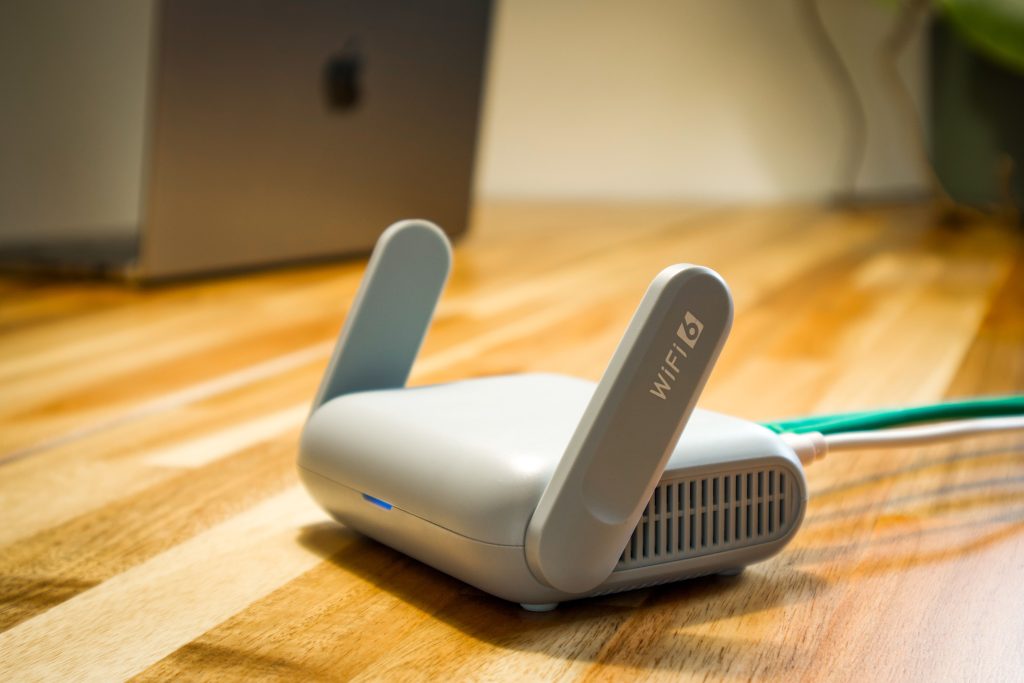
| Guest network with isolation | Easy, 10 minutes | Good on most routers | Some guest networks time out or limit device numbers |
| Built-in IoT network | Easy, if your router or mesh offers it | Good | Feature names and options vary by brand |
| Second router for gadgets | Moderate | Good | Extra hardware and setup |
| VLAN on a business-style router | Advanced | Best and most flexible | Needs networking knowledge |
How to set up a guest network for smart devices
- Open your router’s app or admin page. Mesh systems like eero, Google and Nest Wifi use an app. Many other routers use a web page, often at 192.168.0.1 or 192.168.1.1 (check the label on the router).
- Find the guest network setting, sometimes called guest Wi-Fi, guest access or, on newer routers, IoT network.
- Turn it on and give it a clear name, such as “Home-Devices”. Use WPA2 or WPA3 security and a strong password.
- Enable isolation. Look for options like “allow guests to access my local network” and switch it off, so guest devices cannot see your main network.
- Make sure 2.4 GHz is on for the guest network, since many gadgets need it.
- Turn off any time limit on guest access, or your devices will drop off when it expires.
- Move your devices. In each device’s app, change its Wi-Fi network, or remove it and set it up again on the new network.
- Test that each device still works from its app and your voice assistant.
Which devices go where?
| Smart device network | Main network |
|---|---|
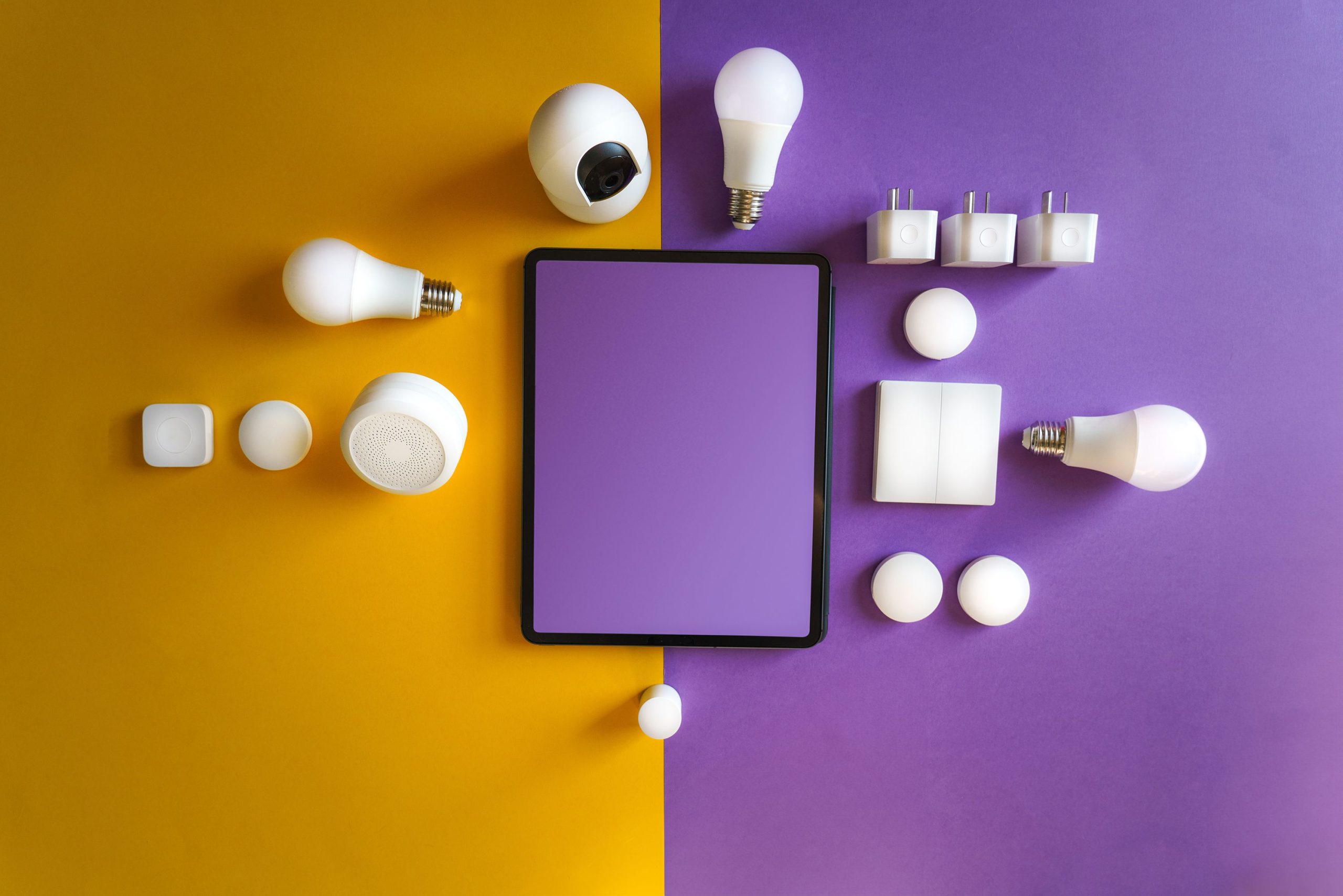
| Smart plugs and switches | Phones and tablets |
| Smart bulbs and light strips | Laptops and desktop computers |
| Security cameras and video doorbells | Work devices |
| Robot vacuums and smart appliances | Network storage and backup drives |
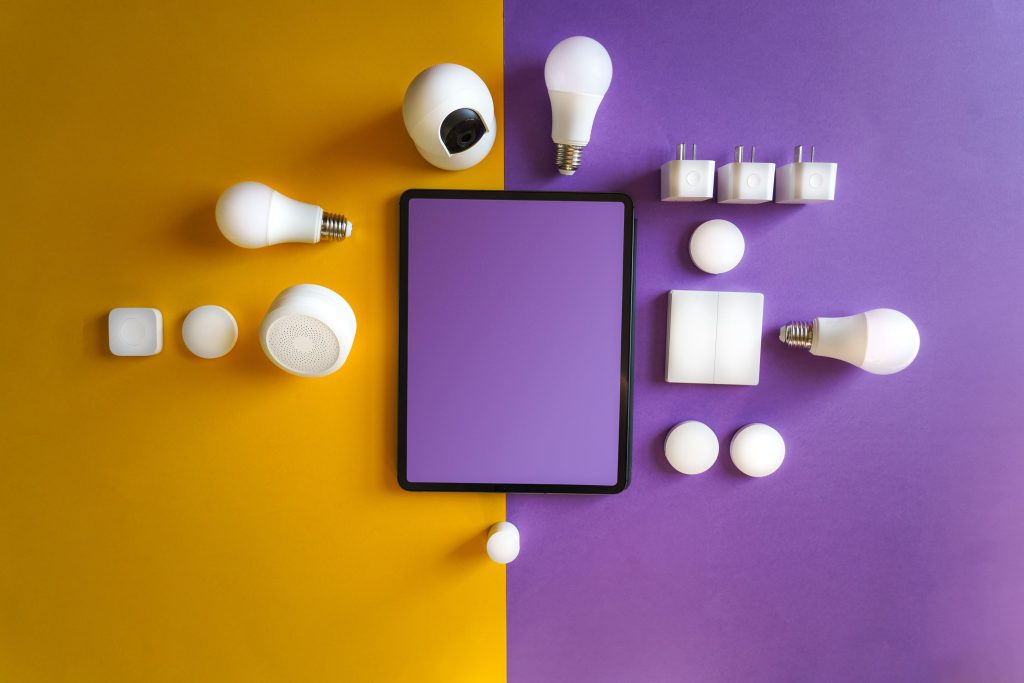
| Smart speakers and displays (if casting is not needed) | Media streamers you cast to from your phone |
| Thermostats and sensors | Printers you use often |
What can break, and how to handle it
- Casting and AirPlay. Chromecast, AirPlay and similar features usually need the phone and the TV or speaker on the same network. Keep media streamers on the main network.
- Local hubs. Some hubs and bridges are controlled from your phone over the local network. If the app cannot find the hub, keep the hub on the main network; the bulbs and sensors it controls use Zigbee or Thread, not Wi-Fi, anyway.
- Setup through the app. Some apps need your phone on the same network while you add a device. Temporarily join the device network on your phone during setup.
- Device limits. Some routers cap how many devices can use the guest network. Check the settings if new gadgets will not join.
How to check the separation actually works
Turning on a guest network is not the same as isolating it. Some routers put guest devices on the same local network unless you change a setting. A quick check takes two minutes:
- Connect your phone to the smart device network.
- Try to open something that lives only on your main network, such as a shared folder, a network printer or your router’s local admin page.
- If you can reach it, isolation is off. Go back to the guest settings and switch off access to the local network.
- Reconnect your phone to the main network when you are done.
Will a separate network slow anything down?
Usually not. Most smart gadgets use very little bandwidth, and the guest network shares the same internet connection and router. Security cameras that stream video all day are the main exception. If you have several of them, it is worth checking that your router can handle the load, or giving the cameras a wired connection where possible. Our Home Internet Speed Calculator helps you add up what your household uses.
Other basic steps for smart device security
- Change default passwords and use a long, unique password for each device account.
- Turn on automatic updates for devices and their apps.
- Check what permissions each app asks for, and turn off features you do not use, such as remote access.
- Remove devices you no longer use from your network and accounts.
- Keep the router itself updated, since it protects everything behind it.
Thinking about moving to a hub-based system with fewer Wi-Fi gadgets? Our guide to Zigbee, Z-Wave, Thread and Matter explains the options.
Frequently asked questions
Should smart home devices be on a separate network?
It is a good idea. The FBI has advised keeping smart devices on a different network from computers and phones that hold sensitive information, so a compromised gadget cannot easily reach them.
Is a guest network good enough for smart devices?
For most homes, yes, as long as guest isolation is on so guest devices cannot see your main network, and there is no time limit on guest access.
Will Alexa or Google Home still work on a separate network?
Yes. Voice assistants control most devices through the cloud, so they work across networks. Casting and some local features may need the phone and device on the same network.
What is an IoT network?
It is a network set aside for Internet of Things devices such as smart plugs, cameras and appliances. Some newer routers and mesh systems offer one as a built-in option.
Do I need a second router?
Usually not. Most current routers offer a guest network that does the job. A second router or VLAN gives more control, but needs more setup.