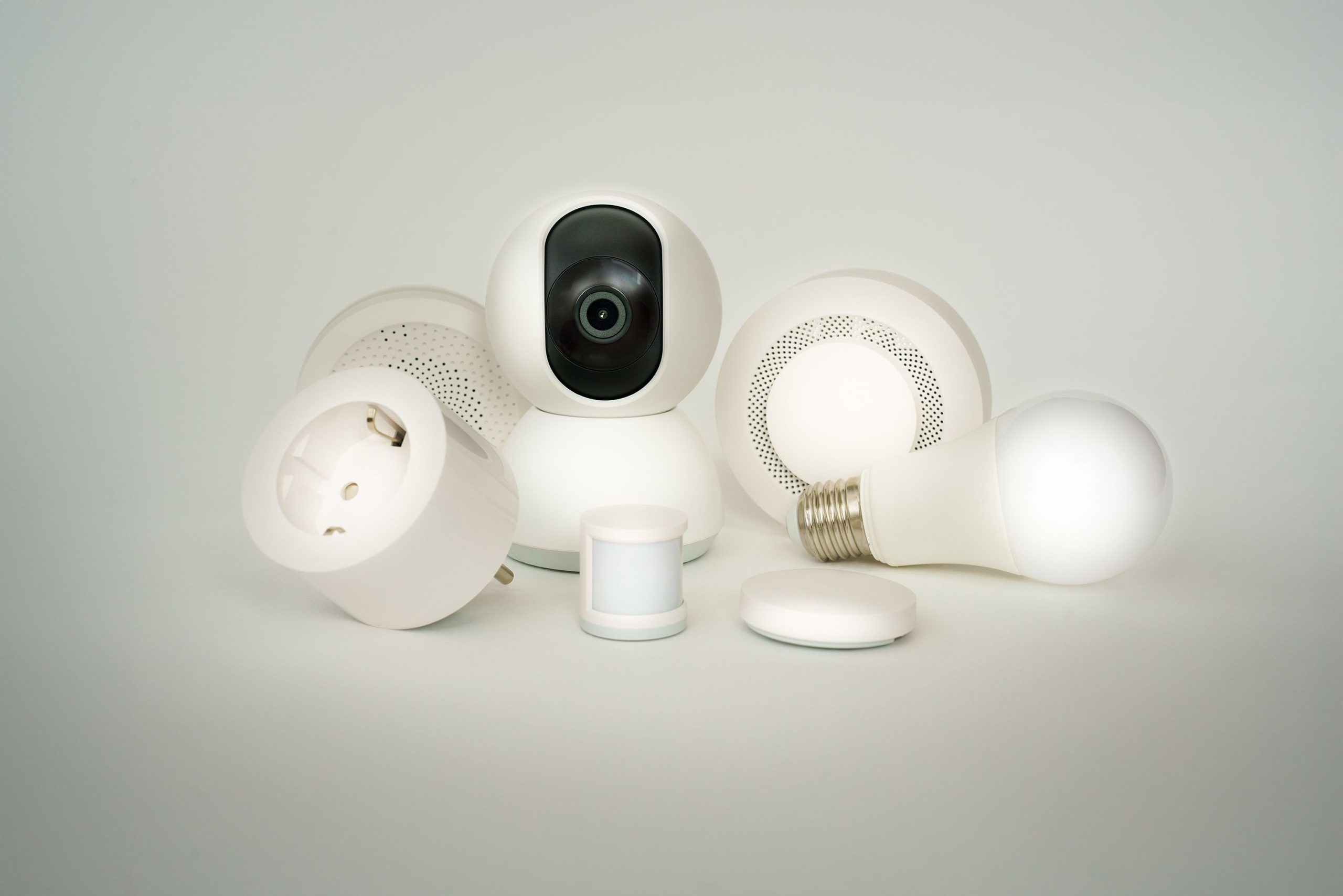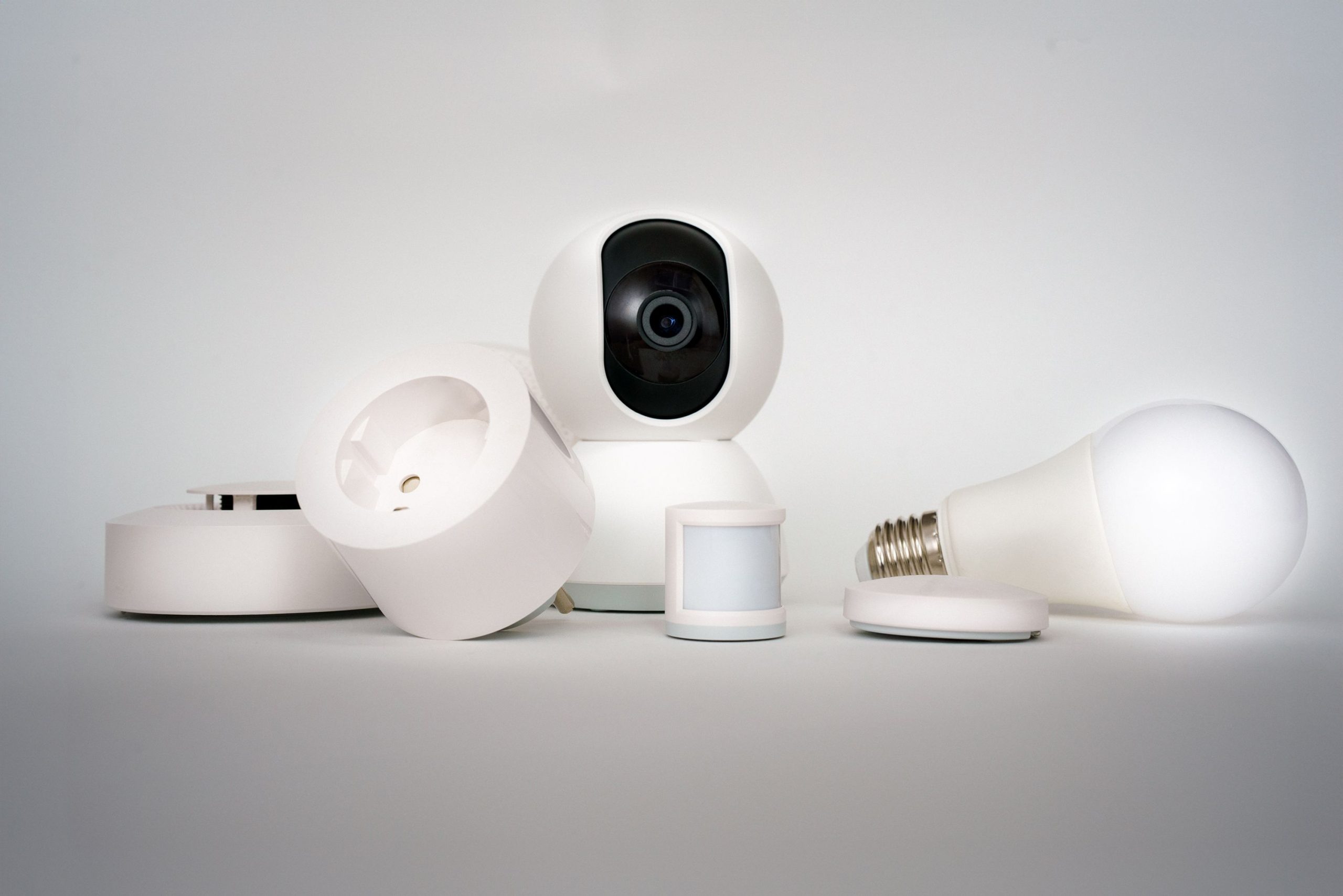

You bought the smart plug, or the bulb, the camera, the robot vacuum. You typed the right password. And the app still insists your network is “not supported.” The problem is not your Wi-Fi password. It is that your phone is standing in the fast lane, and your new gadget only knows how to drive in the slow one.
This is the number-one snag in smart home setup, and it has a simple explanation and four reliable fixes.
Why It Happens
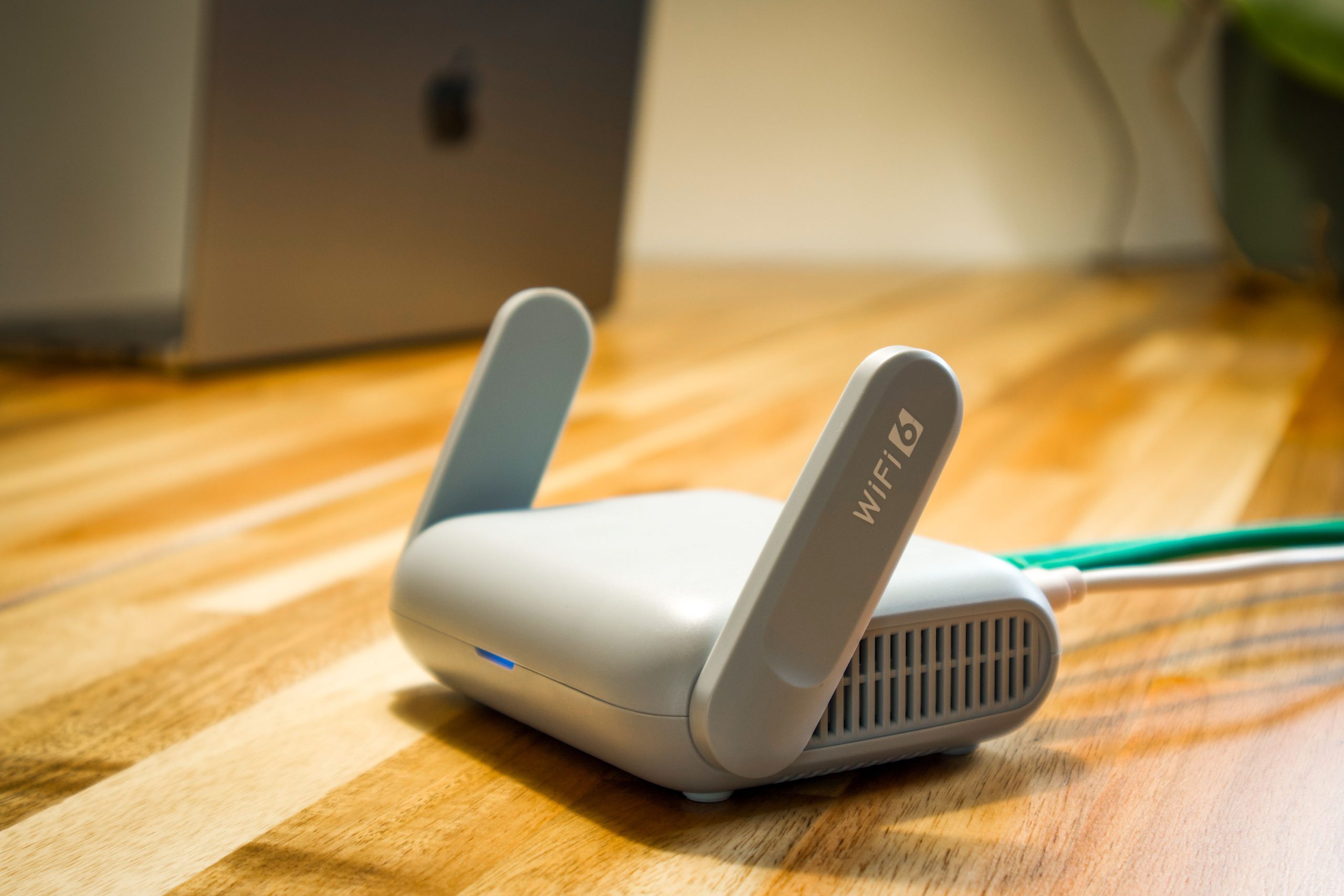
Wi-Fi comes in two main flavors. The 5GHz band is faster, and the 2.4GHz band reaches farther through walls. Most budget smart devices (plugs, bulbs, cameras, vacuums) use cheap chips that only speak 2.4GHz. Modern routers and mesh systems, on the other hand, broadcast both bands, often under one shared network name, and steer your phone onto the faster 5GHz band whenever it can.
During setup, most apps hand the device whatever network your phone is currently on. If that is 5GHz, a 2.4GHz-only device cannot join it, and setup stalls or fails. Some apps grey out 5GHz networks entirely.
Spot It Before You Buy
Check the spec sheet for the Wi-Fi standard. If it says 802.11 b/g/n and mentions only 2.4GHz, expect this setup dance. Some products are dual-band and some are not, even within one brand: ecobee’s newer thermostats support both bands, while the older ecobee3, ecobee3 lite, and ecobee4 are 2.4GHz only.
Four Fixes, Easiest First
| Fix | How hard | Best when |
|---|---|---|
| Move to the edge of your Wi-Fi range | Easy | You just need a quick try |
| Temporarily turn off the 5GHz band | Easy to medium | Your router lets you switch bands off |
| Give each band its own name | Medium | Your router allows separate network names |
| Build a dedicated 2.4GHz IoT network | Medium | You will add many smart devices |
Fix 1: Move to the Edge of Range
The 2.4GHz signal travels farther than 5GHz. Walk to the far side of your home, or to the edge of your router’s range, until your phone drops to the 2.4GHz network, then run setup. It is hit or miss, especially with mesh systems that cover every room, but it costs nothing to try.
Fix 2: Temporarily Turn Off 5GHz
This is the most reliable trick for most people:
- Open your router or mesh app and turn off the 5GHz radio, or stop it from broadcasting its name
- Have your phone forget the network, then reconnect (rebooting the phone helps)
- Your phone can now only see 2.4GHz, so run the smart device’s setup
- Once the device is online, turn 5GHz back on
Some mesh systems will not let you switch off a single band, which is where the next two fixes come in. The device stays on 2.4GHz after you re-enable 5GHz.
Fix 3: Split the Band Names
If your router lets you, rename the two bands so each has its own name, such as HomeWiFi_2G and HomeWiFi_5G. Connect your phone to the 2G network, run setup, and the device joins the network you chose. Naming them separately also makes it obvious which band each gadget is on later.
Fix 4: Create a Dedicated IoT Network
Many routers can broadcast a guest or extra network. Set one up on 2.4GHz only, give it a WPA2 password, and use it for every smart device. It keeps gadgets off your main network and solves this problem for good, because you always know which band you are on. Two cautions: some guest networks isolate devices from your phone, which can block local control, so test it, and older devices sometimes struggle with WPA3 or mixed security modes, so pick WPA2 for this network.
If It Still Will Not Connect
- Move the device closer to the router during setup, since 2.4GHz devices are often set up in a spot with weak signal
- Double-check the password, including capital letters and symbols
- Pause any VPN on your phone while pairing
- Power-cycle the device and the router, then try again
Once you are connected, do not be surprised if a plug or bulb later drops offline or resets. Our guides on smart plugs showing offline and plugs that turn off overnight cover the next steps. If your whole network is straining under a growing pile of devices, see how much internet speed you actually need, and use the free Home Internet Speed Calculator at thehomepilots.com/tools. For a bigger picture on networks and hubs, read our Connectivity buying guide.