

Last updated November 20, 2026. Reviewed by the HomePilot editorial team.
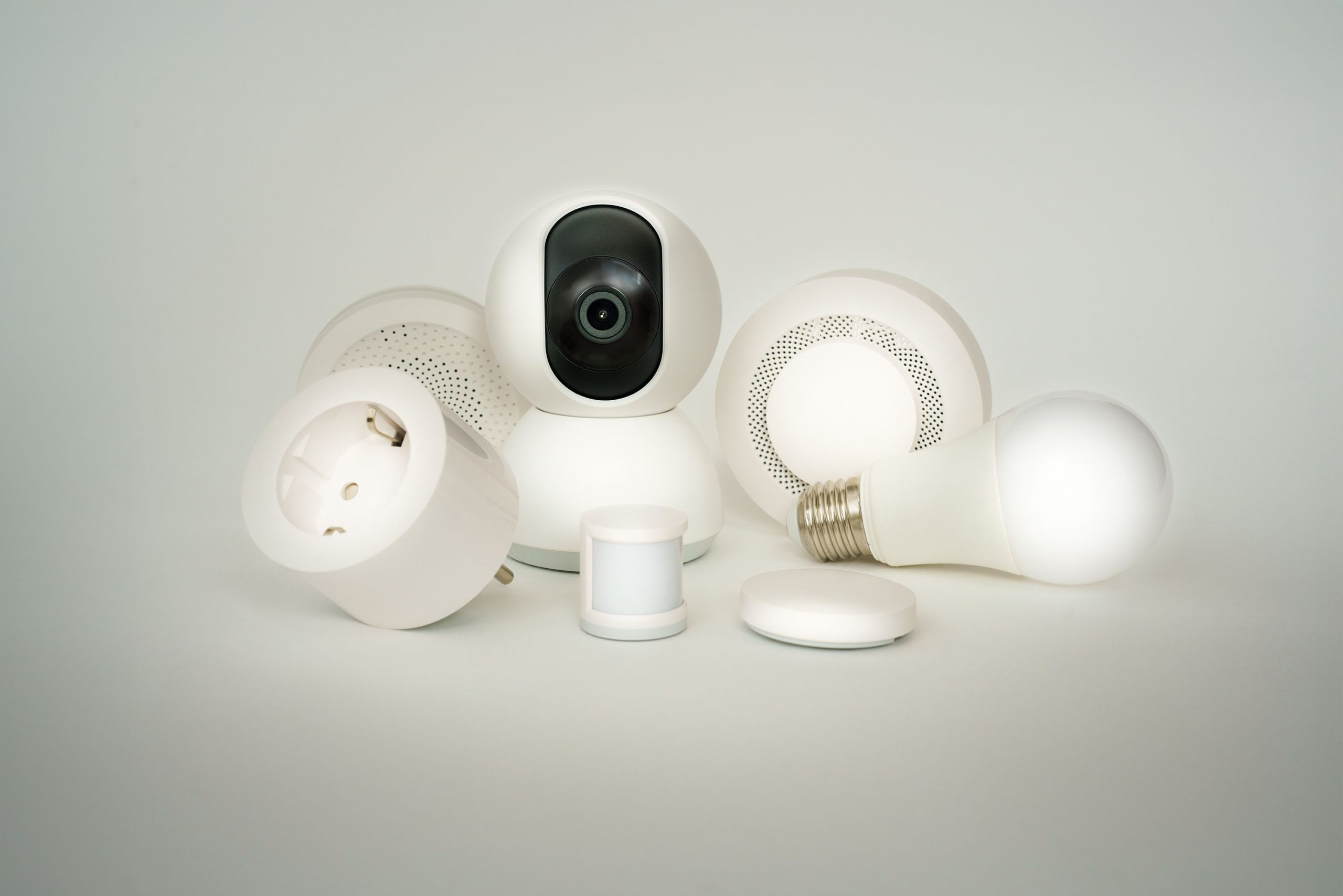
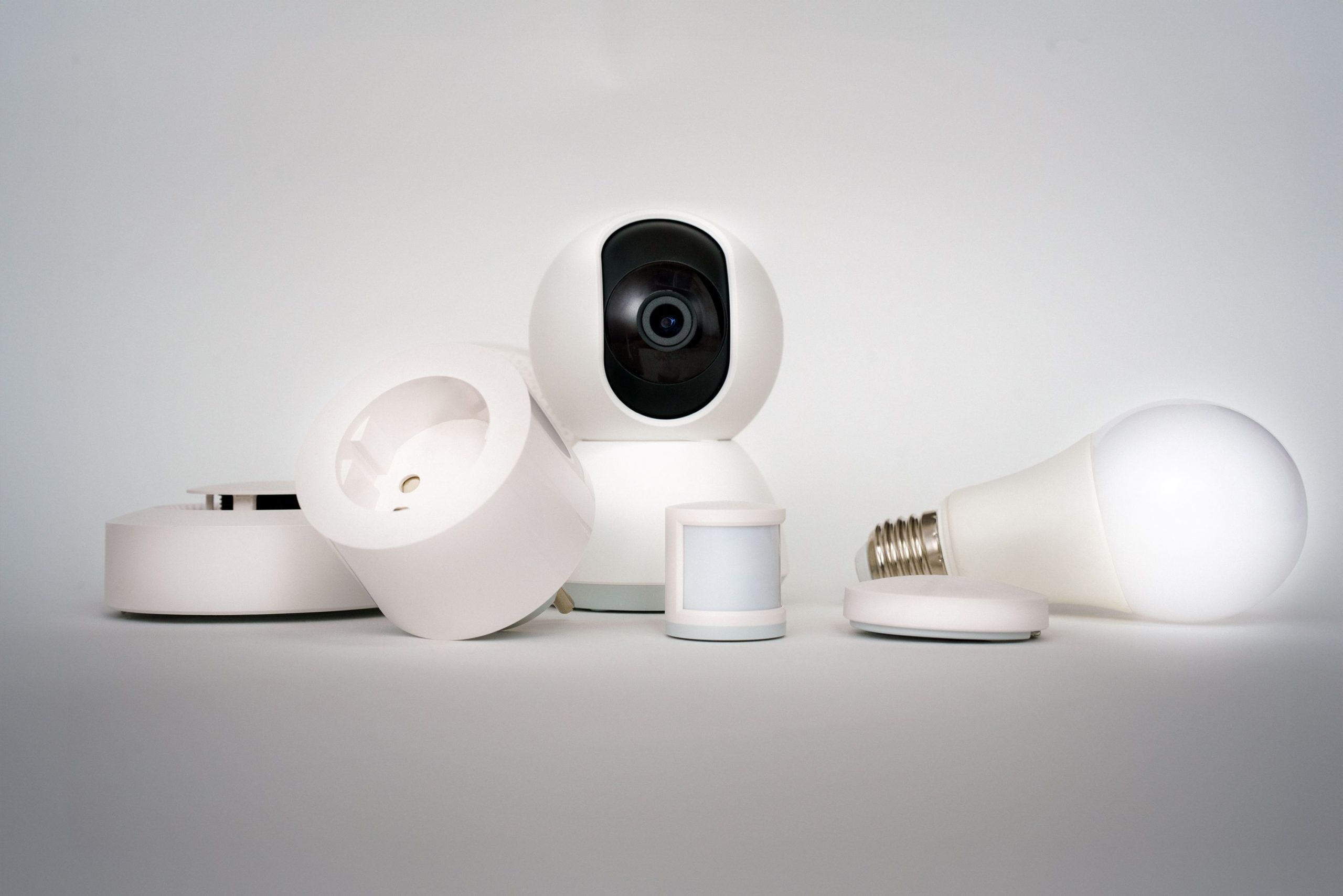
The power blinks off for three seconds at 2 a.m. Every smart bulb in the house comes back on at full brightness, and in the morning the app is a sea of gray: the plug says “offline”, the camera will not load, and the voice assistant insists the lamp “is not responding”. Nothing is broken. Your smart home just woke up in the wrong order.
By the HomePilot Team · Updated November 1, 2026 · Checked against manufacturer guidance and Ready.gov · How we research
Short answer: smart devices usually go offline after a power outage because they restart faster than your modem and router. They look for Wi-Fi, cannot find it, and some give up or get stuck until they are restarted. The fix is to restart things in order: modem, then router, then any smart home hub, then the devices that are still offline. To stop it happening again, put your modem and router on a small battery backup (UPS), reserve IP addresses for important devices, and set your smart bulbs’ power-on behavior so they do not all blaze on.
Key takeaways
- Most “dead” devices after an outage are just disconnected, not damaged.
- Restart in order: modem → router → hub → devices. Wait for each to fully boot.
- A small UPS on the modem and router keeps Wi-Fi alive through short blips.
- Philips Hue and some other bulbs let you choose what happens when power returns.
Why smart devices go offline after an outage
| Cause | What is happening | Clue |
|---|---|---|
| Devices boot before the router | A plug or bulb restarts in seconds; the modem and router can take several minutes. The device finds no network and stops trying | Many devices offline at once, router lights look normal now |
| A new IP address | After a restart, the router may hand devices different addresses, confusing some hubs and apps | Device shows online in its own app but not in Alexa, Google or a hub |
| Hub or mesh still rebuilding | Zigbee, Z-Wave and Thread networks rebuild their routes after power loss | Hub-connected devices return slowly, one by one |
| Internet back, cloud not yet | Cloud-based devices need the maker’s servers too | Device works locally but not from outside the home |
| Power surge damage | A spike when power returns can damage electronics | One device stays dead even after a reset, may feel warm or smell burnt |
Step by step: bring everything back online
- Check that the internet is back. Look at the modem lights or try a website on your phone over Wi-Fi.
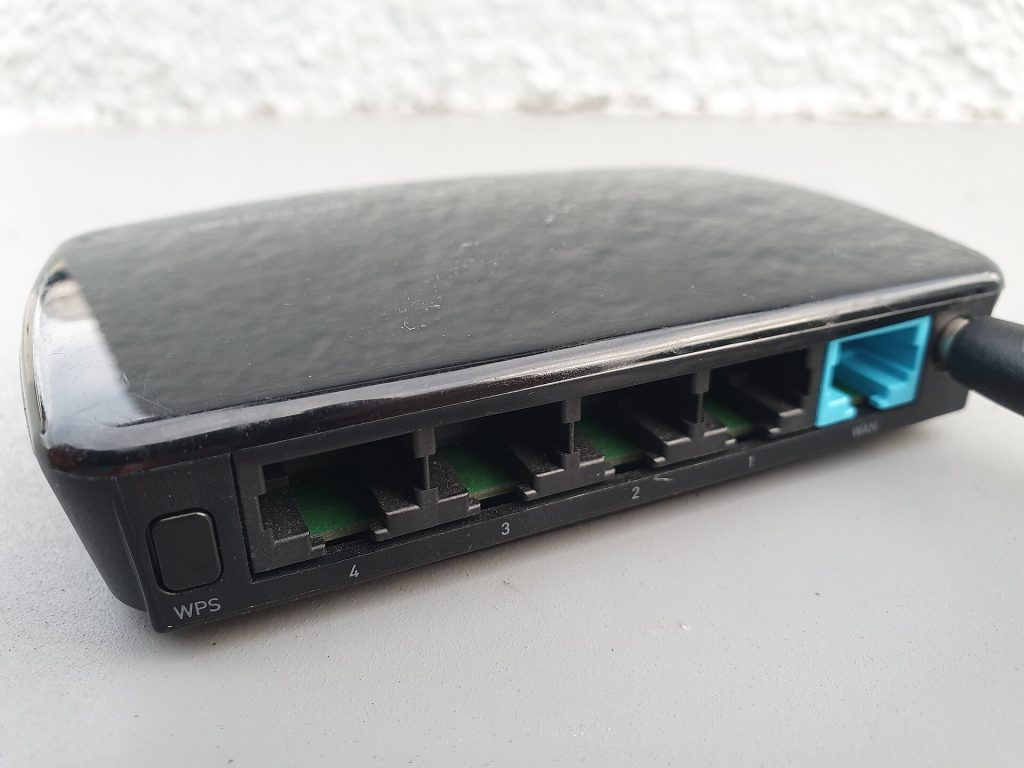
- Restart the modem by unplugging it for 30 seconds. Wait until its internet light is solid.
- Restart the router (or your mesh base unit) and wait a few minutes until it is fully up.
- Restart any smart home hub, such as a Hue Bridge or SmartThings hub, and give it a few minutes.
- Power-cycle stragglers. Unplug offline plugs, switch bulbs off at the wall for 10 seconds, or restart cameras.
- Refresh the voice assistant. In the Alexa or Google Home app, ask it to discover devices again if something still shows offline.
- Only factory-reset as a last resort. A reset means setting the device up from scratch.
Fixes by device type
| Device | Common problem after an outage | Fix |
|---|---|---|
| Smart bulbs | All turn on at full brightness, or go offline | Set power-on behavior in the app; flip the wall switch off and on |
| Smart plugs | Show offline but still have power | See why a plug shows offline |
| Cameras and doorbells | Stuck reconnecting | Power-cycle; battery models may need a manual wake |
| Smart thermostats | Lose Wi-Fi or show low power | See thermostat power problems |
| Hub devices (Zigbee, Z-Wave) | Return slowly | Give the hub time; then power-cycle any device still missing |
Stop smart bulbs from blasting on after an outage
By default, Philips Hue bulbs come back on at full brightness when power returns, so they behave like ordinary bulbs on a wall switch. Since a 2018 update, the Hue app lets you change each light’s power-on behavior, including a “power loss recovery” option that returns the light to the state it was in before the outage. Many other brands offer a similar “restore last state” setting in their apps. Check yours before the next storm, not at 2 a.m.

How to prevent it next time
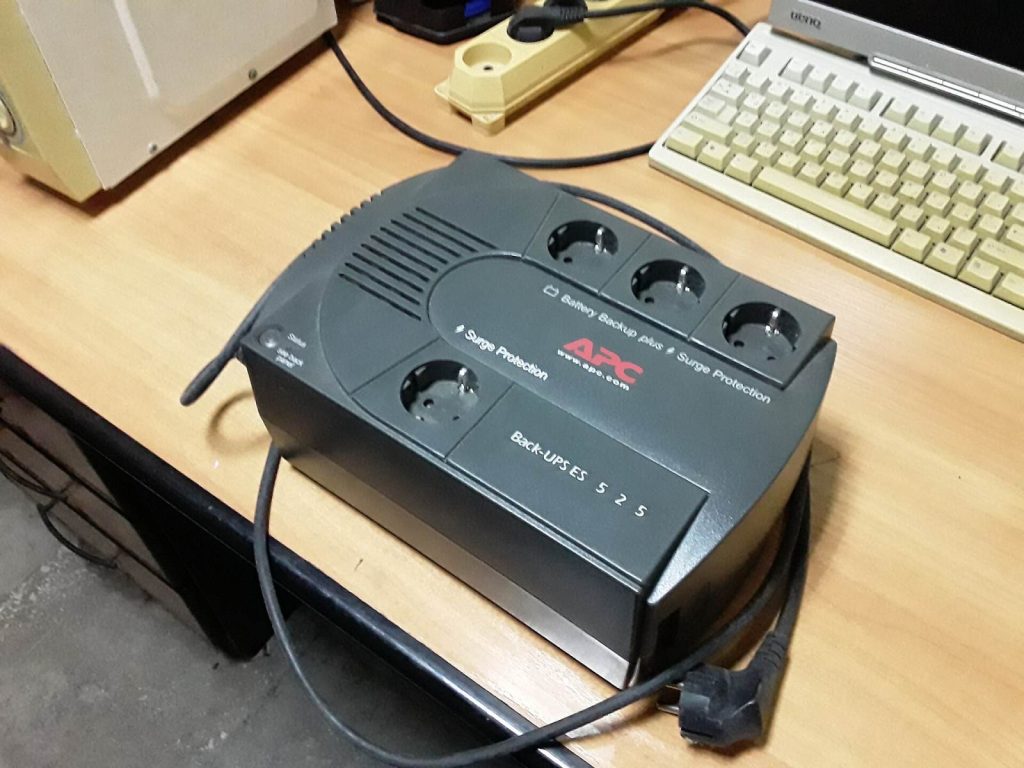
- Put the modem and router on a UPS. A small battery backup keeps your network running through blips and short outages, so devices never lose Wi-Fi. A modem and router draw very little power, so even a compact UPS can usually keep them going for a long time; check the maker’s runtime chart.
- Reserve IP addresses for hubs, cameras and other key devices in your router settings (often called DHCP reservation), so their address does not change.
- Use surge protection. Ready.gov advises turning off or disconnecting electronics during an outage because power can return with surges that damage them.
- Prefer devices with local control. Zigbee, Z-Wave, Thread and Matter devices on a local hub keep working when the internet is down. See Zigbee, Z-Wave, Thread and Matter explained.
- Set power-on behavior for bulbs, plugs and switches before you need it.
Your smart home outage checklist
Run through this list once, on a calm day, and the next outage becomes a non-event:
- Label the modem, router and hub plugs so anyone in the house can restart them in the right order.
- Write the restart order on a sticky note near the router.
- Save your Wi-Fi name and password somewhere you can find without the internet.
- Check which devices have a power-on or restore-state setting and set it now.
- Keep a phone power bank charged so you can still use the apps during a long outage.
- If you rely on smart locks or a video doorbell, know how to open the door and get alerts without them.
Is a device damaged or just disconnected?
If a device has no lights at all after you restore power, will not respond to a reset, or feels hot or smells burnt, it may have been damaged by a surge. Unplug it and do not keep trying to power it on. Most smart devices that simply show “offline” are fine and come back after the restart order above.
Products mentioned in this article
- APC Back-UPS battery backup – keeps a modem and router running through short outages
- Surge protector power strip – adds protection when power returns
As an Amazon Associate, HomePilot earns from qualifying purchases. Check the listing for current price and compatibility with your home.
Want a smart home that rides out outages? HomePilot Picks rounds up the hubs, plugs and smart home gear we have researched.
Frequently asked questions
Why are all my smart devices offline after a power outage?
Usually because they restarted faster than your modem and router and could not find Wi-Fi. Restart the modem, then the router, then any hub, then the devices that are still offline.
Do I need to reset smart devices after a power outage?
Rarely. A simple power cycle almost always brings them back. A factory reset should be the last resort, because you will have to set the device up again.
How do I stop smart bulbs turning on after a power outage?
Change the power-on behavior in the bulb’s app. Philips Hue, for example, lets you choose power loss recovery, which returns the light to its previous state.
Will a UPS keep my smart home running?
A UPS on the modem, router and hub keeps your network up through short outages, so devices do not drop off. Devices plugged into the wall will still lose power unless they are on a UPS too.
Can a power outage damage smart devices?
It can. Power sometimes returns with a surge. Ready.gov recommends turning off or unplugging electronics during an outage, and surge protectors add another layer of protection.