

Last updated November 1, 2026. Reviewed by the HomePilot editorial team.
The most common reason a new smart home hub disappoints is not the hub. It is where it ends up: tucked behind the TV, wedged next to the router, or paired to the wrong app. Get the first hour right and the rest is easy. Here is how to set up a smart home hub without the headaches.
Short answer: plug the hub in somewhere central, update its firmware, add it to its app, then pair one device before adding the rest. Add mains-powered devices first, name everything clearly, and test one routine. Most pairing problems come down to distance, interference, or a device that is still paired to something else.
How to set up a smart home hub, step by step
- Pick a central spot. Place the hub in the middle of the home, off the floor and in the open. Keep it a few feet away from your router and bulky electronics. Some hubs, such as the Home Assistant Green, need an Ethernet cable, and a wired connection helps any hub stay online.
- Plug in and update. Power it up and let it install its first firmware update before you add devices.
- Install its app. Create the account, follow the pairing prompts, and keep your phone on the same Wi-Fi network while you do. If a device only joins 2.4GHz, see our 2.4GHz mesh router guide.
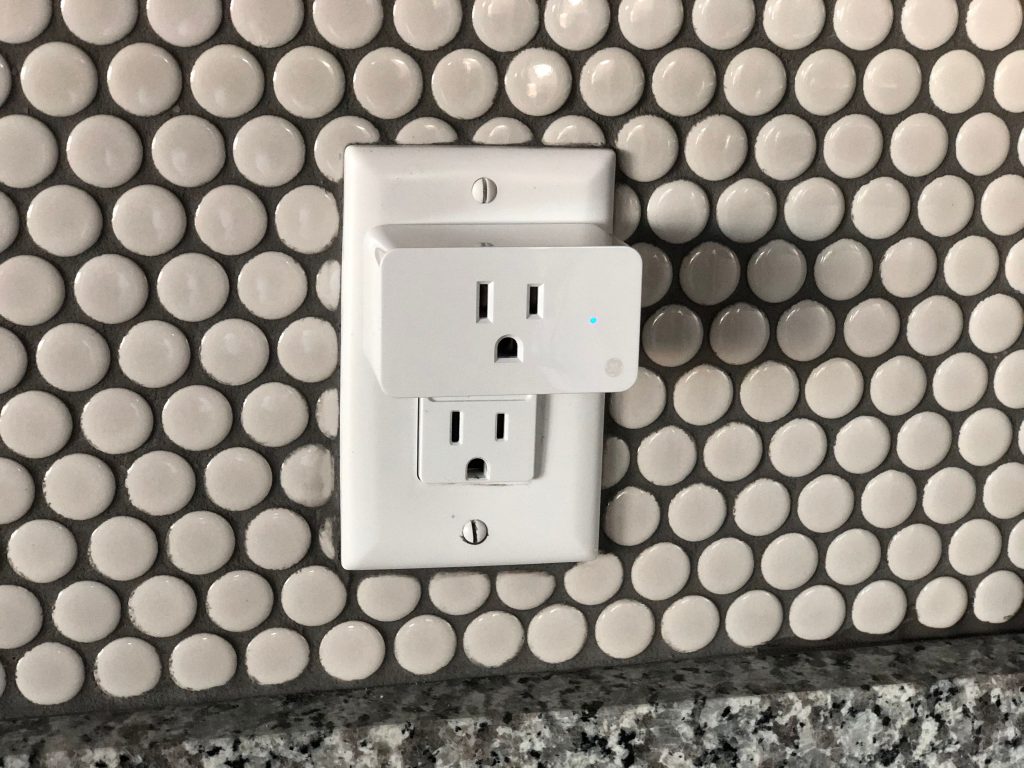
- Add one device first. Pick something simple, like a smart plug, and make sure it appears and responds before adding more.
- Add Matter devices with their setup code. Scan the QR code on the device or box. Matter devices on Thread need a Thread border router, which may already be your speaker or hub.
- Add Zigbee and Z-Wave devices from the inside out. Put the hub in pairing mode, then trigger the device. Add mains-powered ones first, because they usually relay signals for battery devices and strengthen the mesh.
- Name devices and rooms clearly. Names like “Kitchen ceiling light” work far better with voice control than “Light 3”.
- Test one routine. Build a simple scene, such as a sunset light, and check that it runs. If your hub claims local control, test it with the internet off too.
Fixes when a device will not pair
| Problem | Likely cause | What to try |
|---|---|---|
| Device will not pair | Too far away, not in pairing mode, or still paired elsewhere | Factory reset the device, bring it within a few feet of the hub, and try again. |
| Hub keeps going offline | Weak Wi-Fi or a changing address from your router | Use Ethernet if the hub has a port, and give it a fixed address in your router settings. See our mesh Wi-Fi guide. |
| Thread device not found | No Thread border router nearby | Check that a speaker, display, router or hub in your home is a Thread border router, and add one if not. |
| Matter device will not join a second app | It is already paired to the first app | Use the share option in the first app to generate a new pairing code. |
| Zigbee devices drop out | Wi-Fi interference or a thin mesh | Move the hub away from the router and add a mains-powered Zigbee plug or bulb as a relay. |
What to do after setup
- Group devices by room and set a few simple scenes.
- Check the app for hub firmware updates every so often.
- Keep a list of which devices are paired to which hub, so a reset does not leave you guessing.
Not sure you picked the right model? Compare options in our best smart home hubs roundup, or learn the basics in what is a smart home hub. Still choosing radios? See home automation hub explained.
Frequently asked questions
Where should I put a smart home hub?
Somewhere central, in the open and off the floor, a few feet from your router. Metal cabinets and thick walls weaken wireless signals, so avoid hiding the hub behind them.
Do I need to reset my devices when I switch to a new hub?
Usually yes. A device that is still paired to the old hub will not join a new one, so remove it from the old hub or factory reset it first.
Can I use more than one smart home hub?
Often, yes. Thread networks can have more than one border router, and Matter lets one device join several apps. Zigbee and Z-Wave devices generally belong to one hub at a time.
Still need a hub to set up?
We did the research so you don’t have to. Browse HomePilot Picks for hubs worth bringing home.